dgVoodoo2 Download – Latest Version for Windows

Your old Glide or DirectX game isn't broken — it's talking to a graphics API your GPU driver stopped supporting years ago. dgVoodoo2 is a free compatibility wrapper that translates those legacy calls (Glide, DirectDraw, Direct3D up to D3D9) into modern Direct3D 11/12, so classic PC games run on current Windows and GPUs without touching your original game files.

dgvoodoo2

Why This Approach Works Better Than Compatibility Mode

Windows’ built-in compatibility mode changes how the operating system presents itself to an older program, but it doesn’t touch the graphics call chain at all. If a game is crashing because it can’t find a Glide driver, telling Windows to “pretend to be Windows XP” does nothing there’s still no Glide driver to find. dgVoodoo2 addresses the actual missing piece instead of working around the OS layer, which is why it succeeds on titles that compatibility mode alone can’t fix.

About dgvoodoo2

What Is dgVoodoo2?

dgVoodoo2 is a graphics wrapper a small set of DLL files you drop into a game’s folder that intercept old API calls before the game makes them. Instead of asking Windows 98-era DirectDraw or Glide to talk directly to your GPU (which no modern driver supports), the game’s calls get redirected through dgVoodoo2, translated into Direct3D 11 or 12, and rendered normally. Nothing in the original game executable is modified.

This matters because Glide (3dfx Voodoo cards) and early DirectX versions haven’t had real driver support in over two decades. GPU vendors dropped native support for these APIs long before Windows 10 existed, which is exactly why a game that ran perfectly on a Windows 98 machine can crash, show a black screen, or render with missing textures on a brand-new GPU today. The hardware is powerful enough to run the game a thousand times over it just doesn’t speak the game’s language anymore.

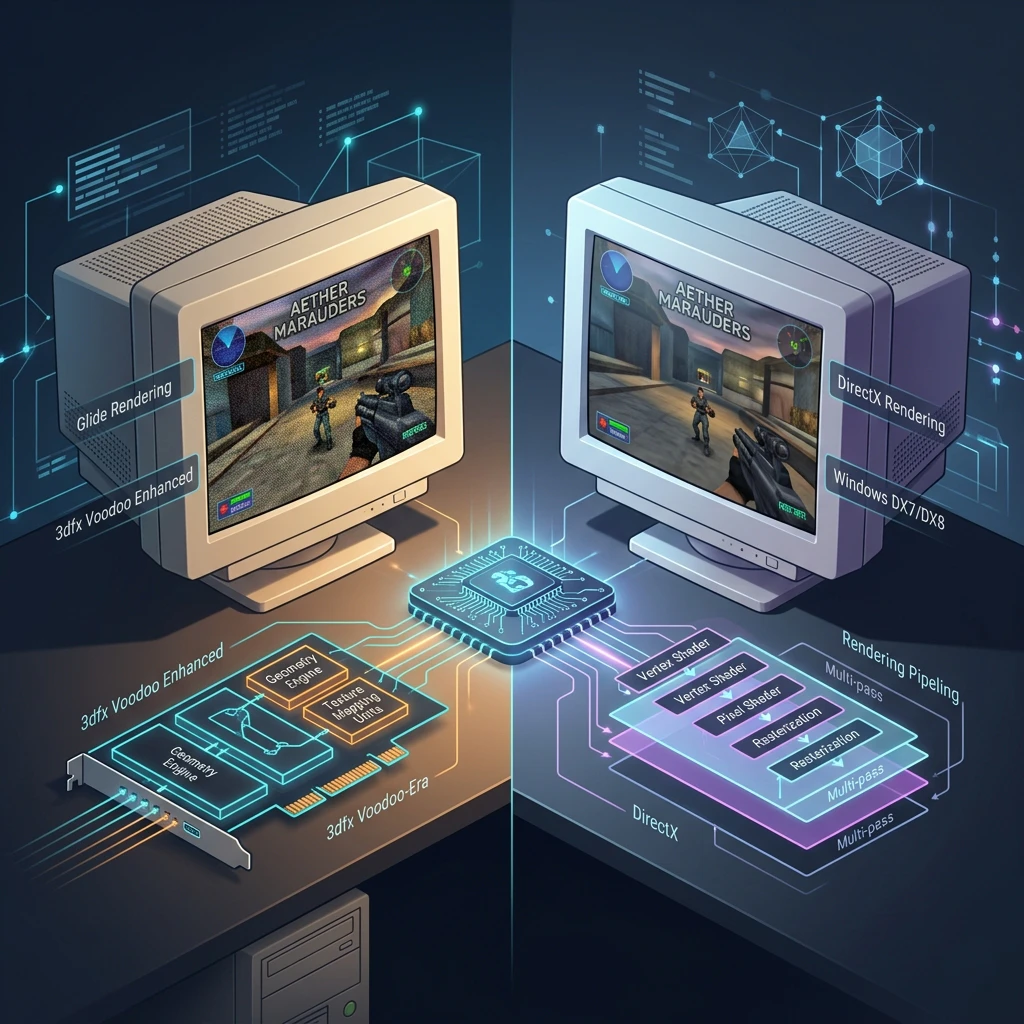
dgVoodoo2 solves this at the API layer rather than the emulation layer. It isn’t emulating an entire old graphics card the way something like a full system emulator would; it’s re-implementing the interface those old cards exposed, then handing the actual rendering work to your real, modern GPU through Direct3D 11/12. That distinction matters for performance: because the heavy lifting still happens on real hardware, most supported games run at full native resolution and frame rate often better than they ever ran on period-correct hardware, since a modern GPU processes even “inefficient” old-API calls almost instantly.

This matters because Glide (3dfx Voodoo cards) and early DirectX versions haven’t had real driver support in over two decades. Without a wrapper, many of these games crash on launch, show a black screen, or run with broken textures on modern hardware.

Latest dgVoodoo2 Version

Because dgVoodoo2 updates every few weeks, don’t treat this table as static — link the “Download” button to a page that always pulls the current GitHub release rather than hardcoding this version in evergreen copy.Lorem ipsum dolor sit amet, consectetur adipiscing elit. Ut elit tellus, luctus nec ullamcorper mattis, pulvinar dapibus leo.

Latest Release v2.87.3 – "some minor fixes"
Released June 23, 2026
Platform Windows (x86/x64; ARM64 supported via emulation or native build)
Package ZIP
Developer Dege (dege-diosg)
VirusTotal (at release) 2/66 detections
Release Notes View on GitHub
DgVoodoo2 DirectX and Glide Support
About dgvoodoo2

DgVoodoo2 DirectX and Glide Support

Each API dgVoodoo2 covers maps to a specific era of PC gaming:

  • Glide / Glide2 / Glide3 / Glide3 Napalm — 3dfx Voodoo cards’ native API (Tomb Raider, Unreal, many late-90s titles)
  • DirectDraw — 2D blitting used by early Windows games and some video playback
  • Direct3D 3/5/6/7 — early fixed-function 3D, common in late-90s/early-2000s titles
  • D3D8 / D3D9 — the most common target today; covers the bulk of early-2000s PC games
  • D3D11/12 backend — not something old games speak directly; this is what dgVoodoo2 translates into, which is why it works on modern GPUs

If a game’s executable imports glide2x.dll, ddraw.dll, d3d8.dll, or similar, dgVoodoo2 can likely intercept it.

What Does dgVoodoo2 Do?

Legacy Game Compatibility
Gets Glide- and early-DirectX-dependent games running on modern Windows and current GPU drivers, without patching or cracking the game itself.

Graphics API Translation
Implements Glide, Glide2, Glide3, Glide3 Napalm, DirectDraw, Direct3D 3/5/6/7, D3D8, and D3D9 — rendered through a D3D11/12 backend that your current GPU driver actually supports.

Resolution & Scaling Control
Forces custom resolutions and MSAA (anti-aliasing) for games hardwired to low native resolutions, plus upscaling filters like bicubic and Lanczos for titles that can’t be told to render at anything higher than their original resolution internally.

Filtering & Visual Tweaks
Optional retro-style color management, dithering, and simple pixel multiplication, for players who’d rather preserve the original chunky look than have it “cleaned up” by modern filtering.

Old-Hardware Emulation
Compatibility modes for rare titles tied to specific old cards — the documentation specifically calls out support for cards like the GeForce4 Ti4800 and Radeon 8500, useful for the small set of games that behave differently depending on which virtual GPU they detect.

Windowed & Fullscreen Handling
Can force windowed appearance for games that only support exclusive fullscreen, and recent versions have specifically improved how “fake fullscreen” behaves so it resembles true fullscreen more closely, including handling resolution changes more cleanly.

Central Configuration
Every setting is controlled through one tool — dgVoodooCpl.exe — rather than editing multiple config files by hand across different folders.

Developer-Facing API
Beyond the end-user wrapper, dgVoodoo2 also ships a documented API package for developers who want to port related tooling to platforms like ARM64 or ARM64EC — not something most players will touch, but it signals the project is maintained as real software, not just a one-off hack.

Key Features

Powerful Compatibility Tool For Classic Windows Games

dgVoodoo2 enhances older DirectX and Glide games, enabling smooth performance and modern GPU support on Windows systems.

Advanced Graphics Support

Improves rendering quality while ensuring stable gameplay across modern hardware systems.

Easy Configuration Options

Simple control panel allows quick adjustments for resolution and compatibility settings.

Broad Game Compatibility

Supports numerous legacy titles designed for outdated DirectX environments.

dgvoodoo2 by number

Trusted Tool For Classic Game Compatibility Worldwide

dgVoodoo2 helps gamers worldwide run legacy Windows games smoothly with improved compatibility, performance enhancements, and reliable graphics support.

Total Downloads
0 M+
Supported Games
0 +
Years Active
0 +
Windows Compatibility
0 %
Featured

Featured Highlights

dgVoodoo2 delivers enhanced compatibility, performance improvements, and simplified configuration for running classic Windows games on modern hardware systems.

Steam.png

Performance

Boosts frame stability and optimizes rendering for smoother gameplay experience.

playstation.png

Compatibility

Enables legacy DirectX and Glide games on modern systems.


Nintendo.png

Configuration

Provides flexible settings for resolution, scaling, and graphics adjustments.


Xbox.png

Stability

Reduces crashes and improves reliability for older game titles.


Better Performance

Download dgVoodoo2

Download dgVoodoo2 to enhance classic game performance, improve graphics compatibility, and run older DirectX titles smoothly on modern Windows systems.

dgVoodoo2 DirectX and Glide Support

Each API dgVoodoo2 covers maps to a specific era of PC gaming, and understanding which one your game uses is often the fastest way to predict whether dgVoodoo2 will help.

Glide / Glide2 / Glide3 / Glide3 Napalm

Glide was 3dfx’s proprietary API, built specifically for Voodoo graphics cards in the mid-to-late 1990s. Games built exclusively around Glide (common in the Voodoo era) often look noticeably different and sometimes better  under their native Glide renderer than under any DirectX fallback the game might also offer, which is why Glide support specifically (not just “old DirectX support”) is one of dgVoodoo2’s defining features.

DirectDraw

A 2D blitting API used heavily for sprite-based rendering and some video playback in early Windows games. Titles relying on DirectDraw tend to fail with a black screen or an outright crash on modern systems rather than rendering incorrectly, because there’s no native fallback path at all.

Direct3D 3/5/6/7

Early fixed-function 3D rendering, common through the late 1990s and into the early 2000s. This is where a lot of “the game launches but lighting or textures look wrong” issues come from, since these APIs handled lighting and transforms differently than anything that came after them.

D3D8 / D3D9

The most common target for dgVoodoo2 today, since D3D8 and D3D9 cover the bulk of early-to-mid 2000s PC games. Many of the specific game fixes referenced in recent dgVoodoo2 changelogs (shader translation bugs, subresource copy issues) are D3D8/9 fixes, reflecting how much of the current user base is running games from this era.

D3D11/12 backend

This isn’t something old games speak directly. it’s what dgVoodoo2 translates into. Recent versions specifically differentiate between D3D12 feature levels: lower feature levels run in a compatibility mode designed to behave like old D3D8/9 drivers, while higher feature levels use a more direct, “zero-copy” rendering path for better performance on modern hardware.

If a game’s executable imports glide2x.dll, glide3x.dll, ddraw.dll, d3d8.dll, or d3d9.dll, dgVoodoo2 can likely intercept it. If you’re not sure which API a specific game uses, checking the game’s install folder for one of these DLL names or searching the title alongside “Glide” or “DirectDraw” is usually enough to confirm.

DgVoodoo2 Download for Windows

DgVoodoo2 Download for Windows

Yes dgVoodoo2 works on Windows 11, and it’s actively maintained with Windows 11-specific fixes rather than just being “compatible by accident.” Recent releases have addressed real, reported Windows 11 issues, including a threading fix for D3D12 on CPUs built with a hybrid architecture of performance and efficiency cores (a Windows 11-era CPU design that didn’t exist when earlier dgVoodoo2 versions were written), and a fix for a dynamic index-buffer bug that specifically surfaced with modern D3D12 drivers on Windows 11 and wasn’t present on older driver/OS combinations.

Most 32-bit games install and run the same way on Windows 11 as on Windows 10  the installation steps don’t change based on your Windows version. The variables that actually matter are:

  • Your GPU driver version. Some driver releases have introduced regressions specific to 32-bit D3D12 workloads; if a game suddenly stops working after a driver update, that’s worth checking before assuming dgVoodoo2 itself broke.
  • CPU architecture. Systems with hybrid core designs benefit from the threading fixes mentioned above, so staying on the current dgVoodoo2 release matters more on newer hardware, not less.
  • Game-specific quirks. Some titles have known issues that needed individual patches (see the troubleshooting section), independent of your Windows version.

If you hit a problem specifically on Windows 11 that doesn’t happen on Windows 10, updating to the latest dgVoodoo2 release first is the right move before troubleshooting anything else, since driver-and-OS-specific fixes land fairly often.

dgVoodoo2 for Windows 10

Windows 10 is dgVoodoo2’s most tested platform, with broad compatibility across Glide and DirectX titles built up over years of user reports and fixes. Installation is identical to Windows 11 extract, copy the DLLs, configure, launch and the vast majority of supported games work with default settings on a first attempt.

If you’re specifically choosing between Windows 10 and Windows 11 for a retro-gaming setup, dgVoodoo2 compatibility isn’t a meaningful differentiator either way; both are current, supported targets for the developer.

Older Windows Versions

dgVoodoo2 also runs on Windows 7 and Windows 8. These platforms aren’t the focus of ongoing development  the changelog activity is overwhelmingly driven by Windows 10/11 and modern GPU driver issues  but the core wrapper functions the same way, since dgVoodoo2’s job (translating old API calls into D3D11/12) doesn’t fundamentally depend on which modern Windows version is running underneath.

If you’re still running Windows XP, think carefully before reaching for dgVoodoo2 first. Some genuinely old titles run better on period-correct systems or under XP compatibility settings than through any wrapper, since XP can sometimes still provide closer-to-native driver behavior for certain Glide or DirectDraw titles. dgVoodoo2 is built primarily to solve the “my modern GPU driver doesn’t support this API at all” problem — which is far more acute on Windows 10/11 than it ever was on XP.

How to Install dgVoodoo2

Games bought through Steam or GOG sometimes ship with their own compatibility layers already applied (particularly GOG’s DOSBox or wrapper-based releases for very old titles). If a Steam or GOG version behaves differently from what online guides describe for the “original disc” release, check whether the storefront version already modifies the executable before troubleshooting dgVoodoo2 itself the fix in that case is often a specific launch option rather than a dgVoodoo2 setting.

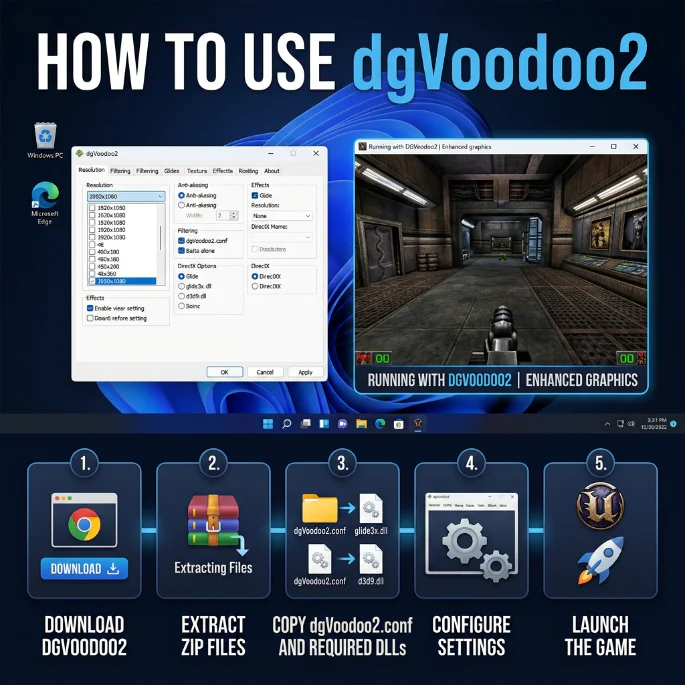
Download the ZIP

Grab the latest release from the official GitHub releases page or the developer’s site. Avoid third-party file-hosting mirrors where possible. they’re the most common source of outdated or tampered builds.

Extract the Files

Unzip to any folder on your system you don’t need administrator rights, and you don’t need to run anything yet. A typical extraction includes an MS folder (Microsoft-API DLLs), separate x86/x64 subfolders, documentation, and license files.

Choose the Correct DLL Files

Inside MS, you’ll find folders split by architecture x86 for 32-bit games, x64 for 64-bit games. Pick the set matching your specific game’s architecture, not your operating system’s. Most classic titles from the Glide/early-DirectX era are 32-bit even if you’re running 64-bit Windows, so check the game’s own executable properties if you’re unsure.

Copy the Files to the Game Folder

Copy the relevant DLLs (for example D3D8.dll, DDraw.dll, D3DImm.dll for a DirectX 8/DirectDraw title, or Glide2x.dll/Glide3x.dll for a Glide title) directly into the same folder as the game’s main .exe not into a subfolder, not into the Windows system directory. Copy dgVoodoo.conf alongside them.

Open dgVoodooCpl.exe

This is the wrapper’s control panel. It can be launched from the extracted dgVoodoo2 folder itself; you don’t need a separate copy in every game folder unless you want per-game presets.

Configure the Game

Set your virtual GPU, output resolution, and any API-specific options relevant to the game (DirectX tab vs. Glide tab — see the usage section below).

Launch the Game

Run the game normally through Steam, GOG, or its original shortcut. There’s no special launch command required — the DLLs you copied are picked up automatically the moment the game starts.

how to use dgvoodoo2

How to Use dgVoodoo2

Installing dgVoodoo2 gets the wrapper active; configuring it correctly is what actually fixes most visual and stability problems. Here’s what each part of the control panel does.

Open dgVoodoo Control Panel.
This is dgVoodooCpl.exe, sitting wherever you extracted or copied the DLLs.

Select the Game Folder / Virtual GPU.
On the General tab, pick which virtual GPU dgVoodoo2 should present to the game. For most modern systems, the default option works; the alternate virtual GPUs exist mainly for the small set of titles that behave differently depending on detected hardware (a legacy from an era when games sometimes had card-specific code paths).

Configure General Settings.
Set your preferred output resolution here first — this affects both the DirectX and Glide tabs downstream.

Configure DirectX Settings.
This tab governs D3D8/9-specific behavior: forced resolution, MSAA level, and texture filtering quality specific to that API family. If a game looks blurry or aliased compared to how you remember it, this is usually the tab to adjust.

Configure Glide Settings.
A separate tab for Glide-based titles, including gamma correction and color-key handling — settings that don’t apply to DirectX games at all, which is why dgVoodoo2 splits them rather than using one universal graphics tab.

Adjust Resolution.
Beyond the basic output resolution, you can force a higher internal rendering resolution than the game natively supports, then apply an upscaling filter (bicubic, Lanczos, or simple pixel multiplication) if the game’s actual render resolution stays low regardless.

Configure Filtering and Anti-Aliasing.
Texture filtering and MSAA settings live per-API (DirectX tab vs. Glide tab), not globally — a detail that trips up a lot of first-time users expecting one universal graphics options screen.

Save and Test.
Settings save automatically to dgVoodoo.conf in the folder you’re configuring. Launch the game immediately after saving to confirm the change took effect; if you’re testing multiple settings, changing one variable at a time makes it much easier to identify which setting actually fixed (or broke) something.

What Is dgVoodooCpl.exe?

dgVoodooCpl.exe is dgVoodoo2’s control panel the single interface used to configure the wrapper. It’s not a launcher for your games; it’s purely a settings tool that writes to dgVoodoo.conf, which the wrapper DLLs read when the game actually starts.

Where it’s found: wherever you extracted the dgVoodoo2 ZIP. You can also copy it into individual game folders if you want to keep per-game configurations visually separated, though this isn’t required dgVoodoo2 reads whichever dgVoodoo.conf sits next to the game’s executable, regardless of where the control panel itself was launched from.

What it controls: virtual GPU selection, output and forced rendering resolution, per-API graphics settings (DirectX and Glide tabs), upscaling filters, and debug/logging options.

Common problems opening it:

  • Won’t launch at all. Usually a missing Visual C++ Redistributable. Installing the latest Microsoft Visual C++ Redistributable package resolves most launch failures.
  • Antivirus quarantines it immediately. This happens because some AV engines flag dgVoodoo2’s compiler-generated code patterns as suspicious not because the file is actually malicious. See the safety section below for how the developer handles this.
  • Opens but settings don’t stick. Confirm you have write permissions to the folder running from a protected location like Program Files without appropriate permissions can silently prevent dgVoodoo.conf from saving.

Does dgVoodoo2 Work on Windows 11?

Short answer: yes, and it’s one of the more actively maintained legacy wrappers for exactly this reason. Because Windows 11 ships newer D3D12 drivers and increasingly runs on CPUs with mixed performance/efficiency core types, some issues that never showed up on Windows 10 have appeared on Windows 11 specifically and been patched in response to real user reports rather than in anticipation of a theoretical problem.

What’s changed in the Windows 11 environment that affects legacy wrappers:

  • Newer D3D12 driver behavior. Driver validation and debug-layer behavior has grown stricter over successive driver generations, occasionally surfacing edge cases in older code paths that older drivers simply tolerated.
  • Hybrid CPU architectures. Systems with a mix of performance and efficiency cores increasingly common on newer hardware running Windows 11 can expose threading assumptions that don’t hold on symmetric-core systems, which is why a CPU-scheduling-related fix specifically appeared in a recent release.
  • 32-bit workloads on newer GPUs. Some very recent GPU generations have shown instability specifically with 32-bit D3D12 workloads (the kind almost all classic games produce), independent of dgVoodoo2 itself a known driver-side limitation the developer has documented while testing against current hardware.

Practical takeaway: if you hit a problem specifically on Windows 11 that doesn’t happen on Windows 10 with the same game, update to the latest dgVoodoo2 release first. Driver-and-OS-specific fixes land often enough that “am I on the current version” should be the first troubleshooting question, not the last.

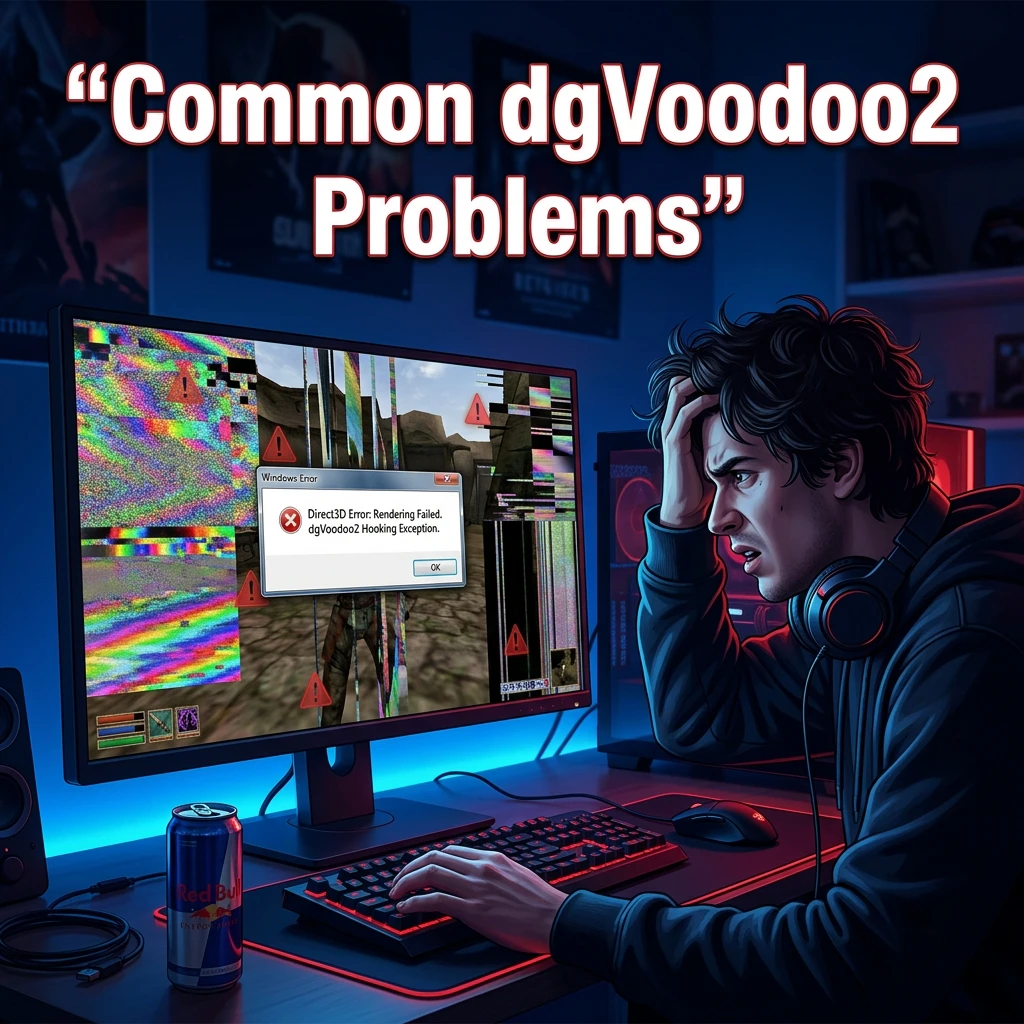
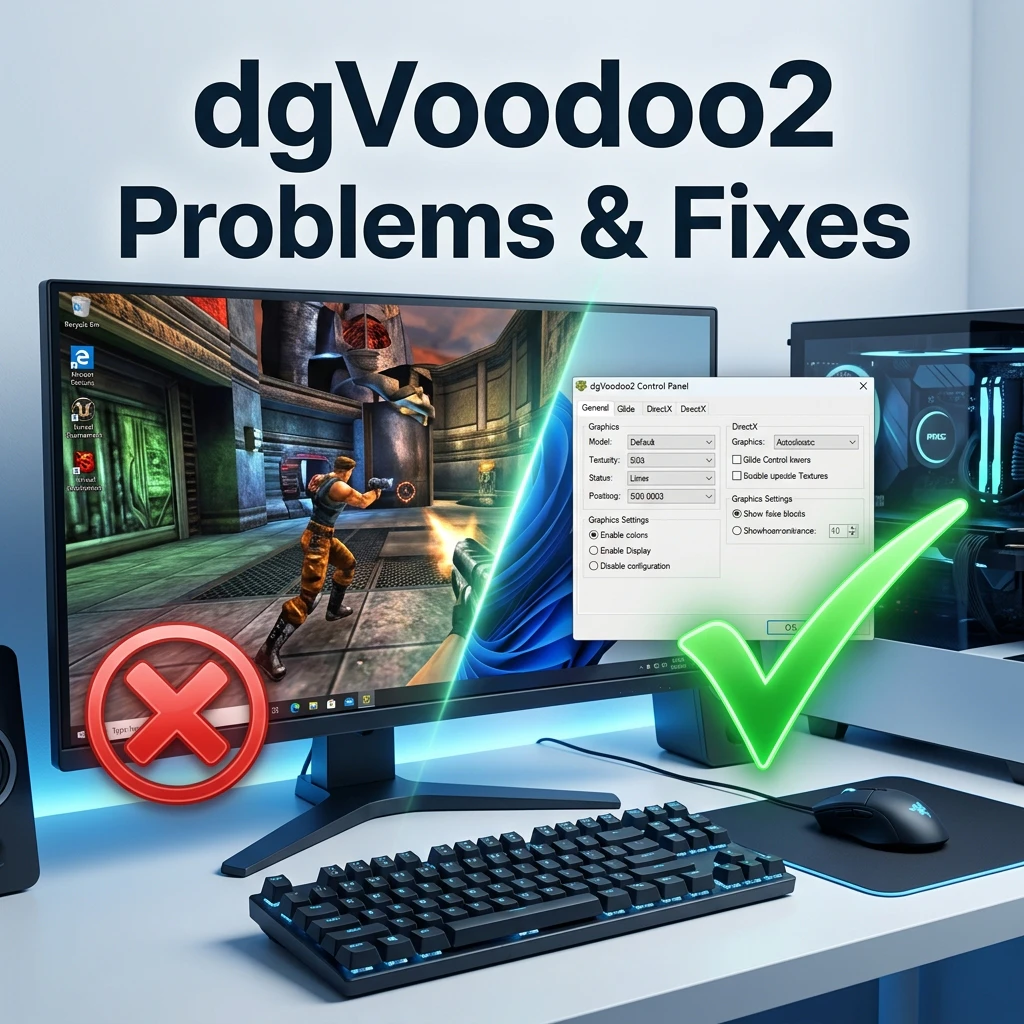
Common dgVoodoo2 Problems and Fixes

dgVoodoo2 isn’t working at all.
Confirm the DLLs are sitting directly in the game’s .exe folder, not a subfolder, and that you copied the file set matching the game’s architecture (32-bit vs. 64-bit) rather than your operating system’s.

Game shows a black screen.
Usually a resolution mismatch between what the game expects and what dgVoodoo2 is forcing. Open the control panel and try a lower forced resolution, or temporarily disable forced resolution entirely, before assuming the wrapper has failed outright.

Game crashes on startup.
The single most common cause is an architecture mismatch — 32-bit files copied into a 64-bit game’s folder, or vice versa. Double-check Step 3 of installation. If the architecture is confirmed correct, check whether the specific game has a known issue in recent changelogs; several fixes in past releases were tied to individual titles crashing under specific backends.

dgVoodoo2 doesn’t seem to detect the game.
dgVoodoo2 doesn’t “detect” games the way antivirus software detects files — it activates automatically the moment the game’s executable imports one of the covered DLL names (Glide, DirectDraw, D3D8/9). If nothing changes after installation, the game most likely isn’t using an API dgVoodoo2 covers, or the DLLs were placed in the wrong folder.

Missing DLL error on launch.
You’re missing a required file from the MS architecture folder. Recheck Step 3 — some games need more than one DLL copied (for example, both D3D8.dll and D3DImm.dll).

Common Dgvoodoo2 Problem
Dgvoodoo3 problems and fixes

Wrong DLL version symptoms.
Mixing DLLs from different dgVoodoo2 releases (say, copying one file from an old download and the rest from a newer one) can cause subtle instability that’s hard to diagnose. Always extract a fresh, complete copy from a single release rather than patching files individually.

Performance or lag problems.
Try disabling forced MSAA and upscaling filters first — these add real GPU load on top of already old, inefficient rendering paths, and the effect is more noticeable on lower-end modern GPUs than you might expect.

Resolution isn’t changing.
Some games cache resolution settings in their own separate config file outside of dgVoodoo2’s control. Check the game’s native graphics settings or config file alongside the wrapper’s dgVoodoo.conf — both may need to agree before the change takes visible effect.

dgVoodoo watermark appears on screen.
This is expected behavior under some configurations, not a malfunction. A WatermarkDisplayDuration option exists in the control panel specifically to control how long — or whether — this watermark shows.

Download link isn’t working.
If a specific mirror or older link has gone stale, go directly to the GitHub releases page rather than an older bookmarked link, since release URLs are versioned and older tags eventually move down the releases list.

Is dgVoodoo2 Safe to Download?

dgVoodoo2 is developed by Dege (GitHub handle dege-diosg), and distributed through the developer’s own GitHub repository and personal site at freeweb.hu. It’s freeware free to download and use but it is not open-source, meaning redistribution rights are more limited than a fully open project, and you should treat unofficial repackaged mirrors with more caution than the original release channels.

On antivirus detection: dgVoodoo2 releases are occasionally flagged by a small number of AV engines. The developer has been transparent about this in release notes, generally attributing spikes in detection to compiler-generated code patterns that some heuristic-based engines flag as “unfamiliar,” rather than any actual malicious behavior and has described submitting flagged builds to Microsoft for review when detection affects Windows Defender specifically. Detection counts have fluctuated release to release (sometimes rising temporarily without any change to the underlying files, purely due to AV vendors updating their heuristics), then dropping again once vendors review the submission.

The most recent release (v2.87.3) showed a VirusTotal ratio of 2 out of 66 engines at launch a low ratio by the standards of legitimate but heuristically “unusual” freeware, and consistent with the pattern described above rather than an indication of an actual compromise.

What to verify before running any download:

  • Confirm the download came from the official GitHub releases page or the developer’s own site, not an unrelated file-hosting mirror.
  • Check the current VirusTotal scan for the specific release you downloaded, rather than relying on a number that may be out of date by the time you’re reading this.
  • Compare the file size against what’s listed on the release page a mismatch can indicate a corrupted or altered download.
  • If your antivirus quarantines a specific dgVoodoo2 DLL, review the release notes for that version before assuming it’s a false positive; the developer documents known detection issues when they occur.

What Is the dgVoodoo2 Wrapper?

“Wrapper” describes how dgVoodoo2 works, not just what it’s called. A graphics wrapper sits between a program and the operating system’s graphics driver, intercepting the calls a program makes in one API and re-issuing equivalent calls in another API that the underlying system actually supports.

Concretely: when an old game calls a Glide function to draw a textured triangle, that call doesn’t reach an actual 3dfx Voodoo driver (which doesn’t exist on your system anymore) it reaches dgVoodoo2’s Glide-shaped DLL instead. dgVoodoo2 translates that instruction into the Direct3D 11 or 12 equivalent, hands it to your real GPU driver, and returns the result back through the same interface the game expects. The game never receives an error, never knows the difference, and keeps running as if the original driver had answered.

This is fundamentally different from emulation, which recreates an entire virtual machine or hardware environment (useful for running software built for a completely different processor architecture). It’s also different from compatibility mode, which only changes how Windows identifies itself to the program without touching the graphics call chain at all. A wrapper is a much narrower, more surgical fix which is exactly why it can achieve close to native performance rather than the overhead typically associated with full emulation.

Games That Can Use dgVoodoo2

dgVoodoo2 is API-based, not game-specific  it works with any title built on Glide, DirectDraw, or Direct3D up through D3D9, which spans an enormous range of games from the mid-1990s through the mid-2000s.

Titles that have come up specifically in dgVoodoo2’s own development history and public changelogs include early Tomb Raider entries, Unreal, Half-Life-era titles, SimCity 4, Fallout: New Vegas, Star Wars Galaxies, Halo: Combat Evolved, Midtown Madness 2, Tiger Woods PGA Tour entries, and numerous other D3D8/9-era games a reflection of just how broad the compatible library actually is, rather than a narrow, curated list.

Because setup details vary by game some need specific launch flags, some need a patched executable for full compatibility, some work better with one virtual GPU option than another a generic walkthrough only gets you so far. See our game-specific guides for exact, tested steps for individual titles rather than trial-and-error against the general instructions above.

Dgvoodoo2 Older Versions

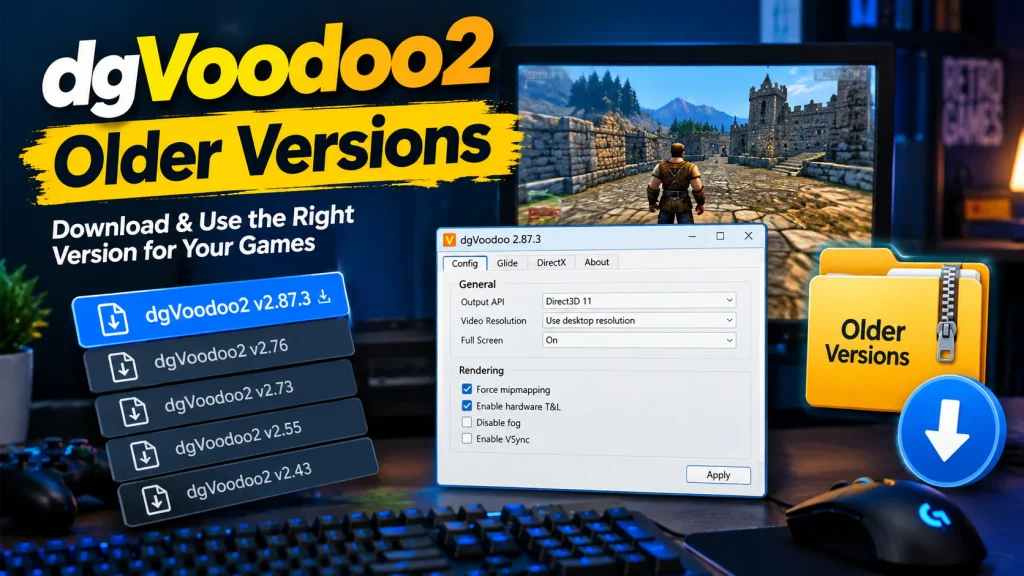
dgVoodoo2 Older Versions

Older releases remain permanently available on GitHub, which matters more than it might seem. Because dgVoodoo2 is under active development, a small number of updates have introduced regressions for specific games even while fixing others — this is disclosed openly in changelogs rather than hidden, and it’s a normal part of active software maintenance, not a sign of instability.

If a newer version breaks something that worked for you before, rolling back to a previous release while the issue gets addressed is a legitimate troubleshooting step, not a last resort. Release notes for each version list exactly what changed, which makes it straightforward to identify whether a specific update is the likely cause of a new problem. See our version archive for the full release history and direct links to older builds.

FAQ

Frequently Ask Questions

Find clear answers about downloading, installing, configuring, and troubleshooting dgVoodoo2 on modern Windows systems.

A free Windows tool that lets old Glide and DirectX games run on modern GPUs by translating their graphics calls to Direct3D 11/12.

From the developer’s GitHub releases page, linked from our download page above — avoid third-party mirrors where possible.

To install dgVoodoo2, download the latest version from the official website, extract the ZIP file, and copy the required DLL files from the “MS” or “x86/x64” folders into your game’s main directory. Then run dgVoodooCpl.exe to configure settings and select your GPU.

After setup, launch the game normally, and dgVoodoo2 will automatically translate the old graphics API for modern Windows compatibility.

Check the version table near the top of this page; it reflects the current GitHub release rather than a fixed number that can go stale.

Yes. It’s actively maintained with Windows 11-specific fixes addressing newer D3D12 driver behavior and modern hybrid-core CPUs.

Yes, it’s the most extensively tested platform for the wrapper, with broad compatibility across Glide and DirectX titles.

You can download the latest official version of dgVoodoo2 from its official release page on the developer’s site or GitHub releases page.

The safest and most updated source is:

After downloading, you simply grab the newest ZIP file from the latest release and extract it.

In short: always download dgVoodoo2 only from its official website or official release page, not from third-party sites, to avoid outdated or unsafe versions.

If your game is still not working after installing dgVoodoo2, it is usually due to incorrect setup or missing configuration. Common reasons include:

  • The dgVoodoo2 DLL files were not copied into the correct game folder
  • You used the wrong version (x86 vs x64) for your game
  • The game requires additional fixes or patches beyond dgVoodoo2
  • dgVoodoo2 settings are not properly configured in dgVoodooCpl
  • Missing DirectX or legacy components needed by the game
  • Antivirus or Windows permissions are blocking the files

In most cases, reinstalling dgVoodoo2 correctly and ensuring the right DLLs are placed in the game directory fixes the issue.

Yes, though these aren’t the focus of active development. The core wrapper functions the same way regardless of the underlying Windows version.

Extract the ZIP, copy the DLLs matching your game’s architecture into its folder, then configure through dgVoodooCpl.exe. Full steps are above.

Open the control panel, pick a virtual GPU and resolution, adjust the DirectX or Glide tab depending on the game’s API, then save — settings apply automatically the next time you launch the game.

The control panel executable used to configure every dgVoodoo2 setting; it’s not a game launcher.

Most often an architecture mismatch (32-bit vs. 64-bit) or DLLs placed in the wrong folder. see the troubleshooting section above for the full list of common causes.

Usually a forced-resolution mismatch. Lower or disable the forced resolution in the control panel and retest before assuming something else is wrong.

Yes, from official sources. It’s freeware from an active, known developer; occasional antivirus false-positives are addressed release to release and explained in changelogs.

You generally don’t need to. dgVoodoo2 is built to fix compatibility problems with legacy APIs games already running correctly on modern Windows won’t gain anything from it and may run better without an added wrapper layer.

Compatibility mode only changes how Windows identifies itself to a program; it doesn’t provide the missing graphics API support. dgVoodoo2 solves the actual missing piece by translating the game’s old API calls into ones your current GPU driver supports.

Blog

Latest Blogs & Articles

Stay updated with articles featuring progress reports, detailed insights into the recompilation process, performance enhancements, platform compatibility updates, and community findings focused on developing and executing the project on modern systems.

Better Performance

Download dgVoodoo2 Now

Grab the current release, drop the DLLs into your game's folder, and you're usually playing within a few minutes. No installer, no account, no changes to your original game files.